




Table of contents
Digital photo organization works best when the first goal is finding the pictures you care about, rather than deleting as many files as possible. A manageable weekend reset can give one trip, family occasion or recent month a clear home. Start with a small collection and a way to protect it before changing the wider library.
Choose an outcome you can recognize: a holiday album with sensible labels, a folder of photographs ready to print or a collection that relatives can browse easily. “Organize every picture I have ever taken” is difficult to finish. A named event gives the session a boundary and makes progress easier to see.
Before rearranging files, identify where the originals are stored. A phone gallery, a cloud library, an old laptop and a camera card may show overlapping collections without containing identical files. Write down those locations. That short inventory is more useful than assuming every photograph visible on a screen has already been backed up elsewhere.
Choose a collection you can finish
Begin by selecting favorites and grouping them in an album or folder. Keep the original collection intact while you decide how the new arrangement should work. In Google Photos, the service’s help documentation distinguishes archiving from deletion: archived items remain searchable and stay in albums, and they still count toward storage.
If the photographs come from a holiday, choose a short organizing session after the trip rather than spending every evening curating while away. Our earlier guide to disconnecting during a vacation offers related reading on making room for the experience itself. The photographs can support a memory without taking over the occasion.
Use labels that will still make sense later. A year, place and event are often clearer than a folder called “New photos final.” For example, a collection named “2026-08 Family visit” tells a future reader more than a sequence number alone. Keep the pattern simple enough that you will use it again.


Understand what a delete action affects
The next step is understanding synchronization. Apple warns that deleting a photograph from iCloud Photos on one device also deletes it from other devices signed into the same Apple Account with that service. A synchronized library should not be treated as an independent copy that automatically protects against a deletion.
Google’s deletion guidance similarly explains that removing an item from Google Photos can affect devices where the app is installed and backup is enabled. Read the current instructions for your own setup before removing anything. A generic cleanup video may assume different settings, accounts or software versions from the ones you actually use.
Make an independent copy of the pictures you want to keep using the provider’s supported download or export process, or a straightforward file copy where appropriate. Open a sample of the saved photographs from that destination. Include a few videos if they are part of the collection, and keep a note of what was copied and when.
Make a checked copy before a big cleanup
Only after understanding the collection should storage costs become the next question. Wowplus’s earlier account of reviewing recurring digital subscriptions provides useful background on checking what you use. A photo plan needs the same careful review, with extra attention to what happens to stored files if a service changes.
There is no need to move a whole library to another provider during the first session. A small, verified export can reveal missing files or an arrangement you dislike before the change becomes larger. Keep the originals while you inspect the result. If something is unclear, pause the cleanup and resolve that question first.
Once the protected copy is readable, review obvious duplicates carefully. Two similar thumbnails may represent different resolutions, edits or moments within a burst. Compare them at a useful size and preserve an original when uncertain. Marking a group for later review is a valid result; every decision does not need to be made today.


Review duplicates and transfers carefully
Camera cards deserve their own check. Copy the files to the intended location, inspect the saved collection and confirm your separate backup before considering reuse of the card. The comparison photograph here shows different card formats. It is an illustration of storage media, not a recommendation to buy the pictured older products.
A phone-based session also needs enough battery and a reliable connection for any transfer you choose to make. Readers using an iPhone can consult our iPhone battery guide as related background, while checking current device instructions for their model. An interrupted transfer should be investigated before any source files are removed.
If files fail to open or a transfer stops, keep the source untouched and check what actually arrived. Do not assume that a progress bar disappearing means everything completed. Try a small supported transfer again only after identifying the missing items, so repeated attempts do not leave you sorting several confusing partial collections.
Create something you will actually enjoy
Sharing can wait until the organization is clear. Review an album for private documents, visible addresses, location details and photographs another person would not want circulated. Choose a sharing method appropriate to the intended audience and review its access settings. A family archive and a public social-media post serve different purposes.
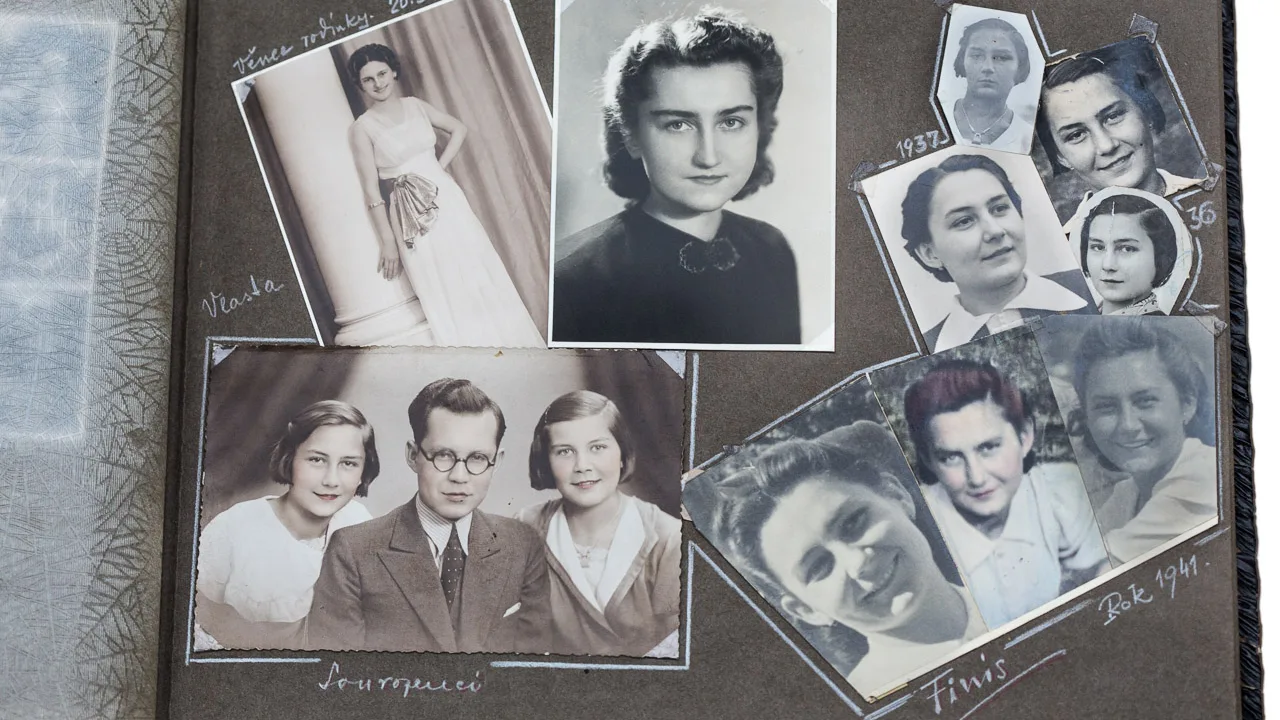
For a finishing touch, choose a handful of photographs to enjoy outside the full library: a small print selection, a slideshow or an album with short captions. The historical paper album pictured here illustrates why context matters. A place, approximate date or event can help a future viewer understand a photograph that otherwise arrives without a story.
End the session by recording the collection’s name, where the originals remain and where the checked copy is stored. Set aside the unresolved items for another short session. A useful weekend reset leaves you able to find and enjoy one part of your photo library, with the pictures preserved and the next step easy to understand.


Isiagu Tobby
Wowplus editorial contributor.